Manage your own account, name, photo, email, notifications, and, at the org level, set the two-factor authentication policy and session controls that protect everyone.
4 min read · Everyone & admins
My profile
Your account, your settings
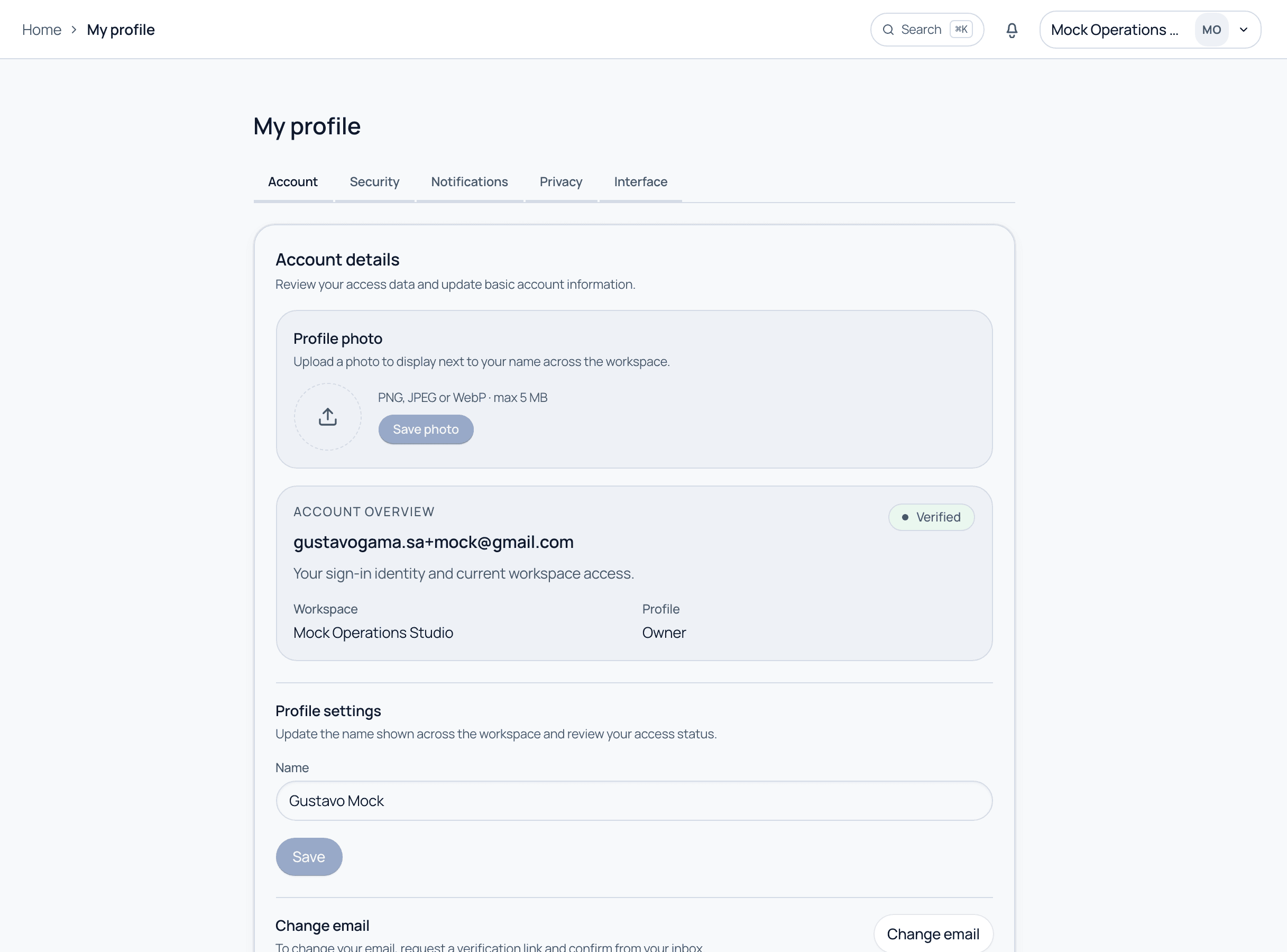
My profile is your personal space: upload a photo, set the name shown across the workspace, review your access and verification status, change your email, and tune notifications, privacy, and interface preferences from the tabs at the top.
My profile. Account details, photo, verified email, and per-user preferences.
Organization security
Set the 2FA policy for everyone
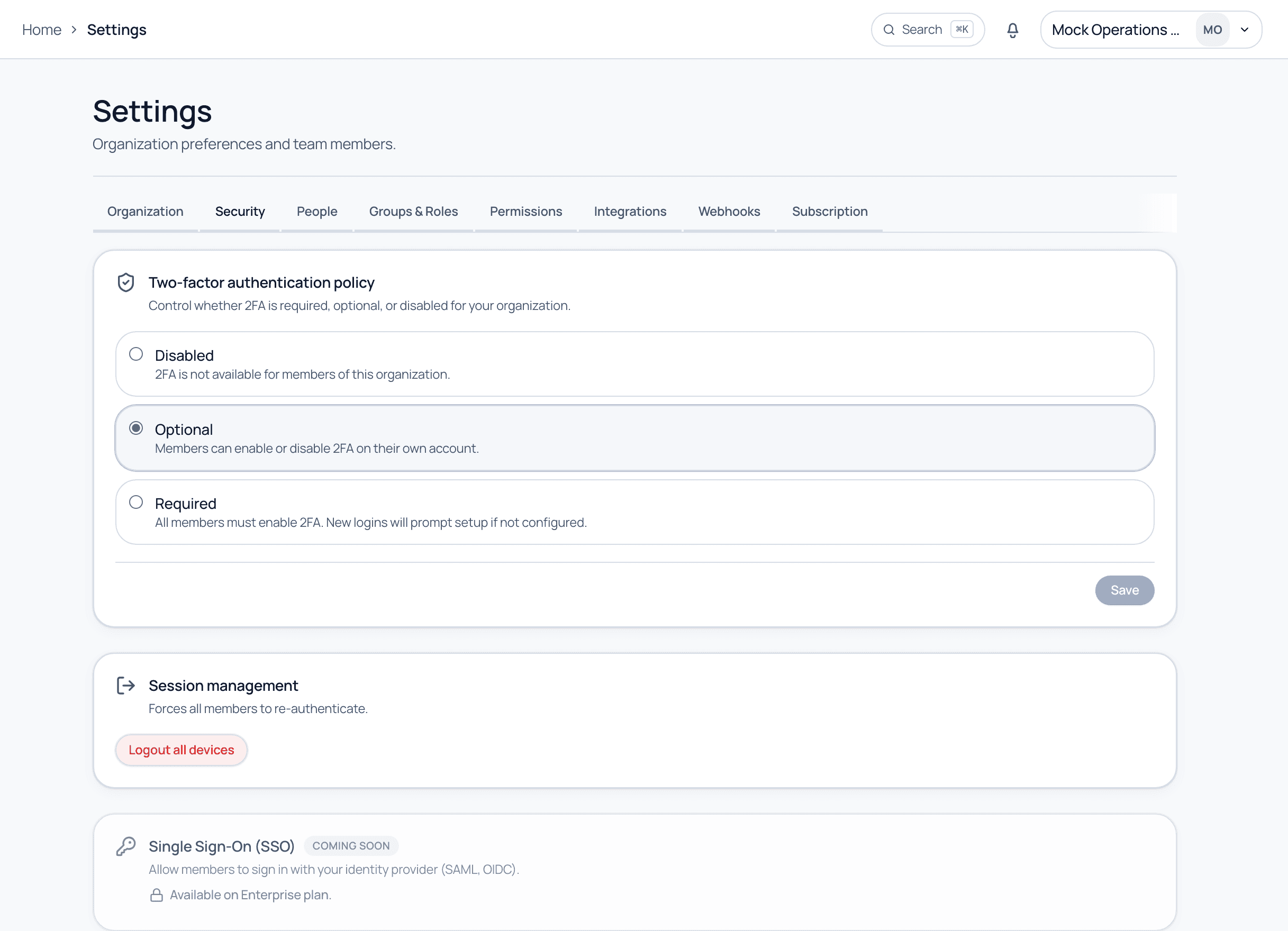
At the org level, Settings → Security controls two-factor authentication for all members: Disabled, Optional, or Required. Required prompts setup on next login. You can also force all members to re-authenticate, and SSO is on the roadmap for Enterprise.
Settings → Security. Choose the org 2FA policy, manage sessions, and preview SSO.
The 2FA policy options
Disabled
2FA is not available for members of this organization.
Optional
Members can enable or disable 2FA on their own account.
Required
All members must enable 2FA; new logins are prompted to set it up if they have not.
Common questions
Where do I turn on 2FA for just myself?
On the Security tab of your own profile. If the org policy is Optional you control it there; if it is Required you will be prompted to set it up at login.
Can I force everyone to log out?
Yes. Settings → Security has session management with a Logout all devices action, which forces every member to re-authenticate.
Secure your workspace
See 2FA policy, sessions, and account controls on a guided demo.