Tutorial · Flows
Flows: build and launch your processes
A Flow is a reusable blueprint of a process. This is where you design the steps once, then launch a governed run every time the work needs to happen.
6 min read · Builders & team leads
Tutorial · Flows
A Flow is a reusable blueprint of a process. This is where you design the steps once, then launch a governed run every time the work needs to happen.
6 min read · Builders & team leads
The Flows screen
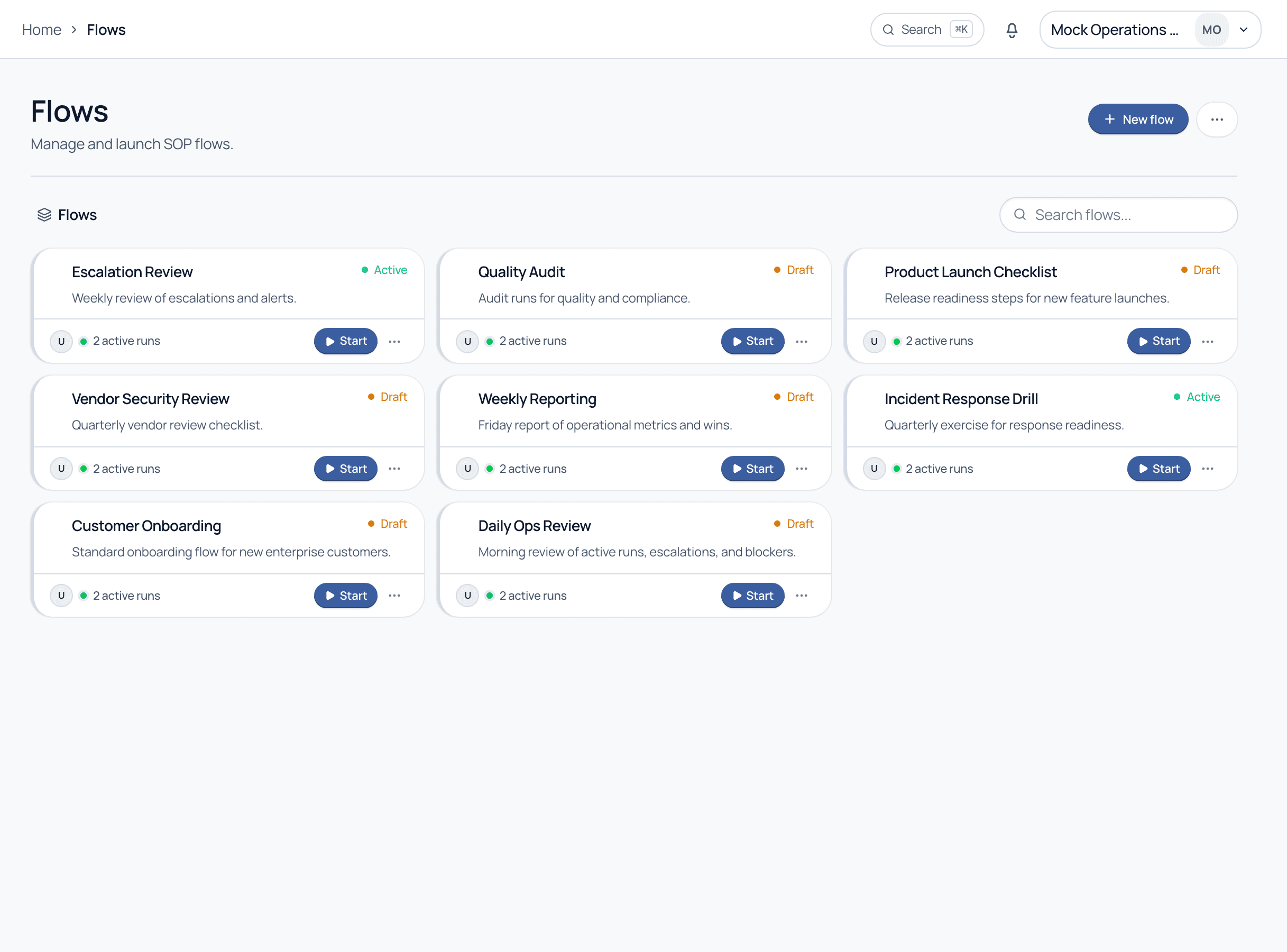
Open Flows from the left sidebar under Design. Each card is one process blueprint: its name, whether it is Active or a Draft, a short description, and how many runs are currently active. Start a run in one click, or open the menu to edit, duplicate, or archive.
Two words you will see everywhere in Cadenio. Getting them straight makes the rest obvious.
Walkthrough
Two paths: start from a blank canvas, or clone a ready-made flow from the library (covered in the next tutorial).
The New flow button is at the top right of the Flows screen. Give the Flow a clear, action-oriented name, for example Customer Onboarding or Vendor Security Review.
Break the process into ordered steps. Each task can carry form fields to capture data, an assignee, a deadline, and an approval gate. You will design these in the Flow editor (Block B tutorials).
While a Flow is a Draft, only builders see it. Publishing flips it to Active so the rest of your team can launch runs from it.
Press Start on the card. Cadenio spins up a live run, applies your deadlines and assignment rules, and drops the first tasks into the right people's inboxes.
The card is a status dashboard for the process, not just a link.
Status
Active or Draft
Active runs
Live executions
Quick actions
Start & manage
Name flows by the outcome, not the tool. Customer Onboarding reads better in a busy list than Onboarding v2 final. Consistent naming keeps the Flows screen scannable as your library grows.
No by default. Existing runs keep the version they were started from. Cadenio can propagate template changes to live runs, but that is an explicit, controlled action, not an automatic side effect of editing.
Anyone with the build permission in your workspace. Access is deny-by-default, so an admin grants building rights per role or user group. See the Permissions tutorial in Block E.
Archiving hides the Flow from the active list while preserving its history and completed runs. Use it to retire a process without losing the audit trail.
Bring a process you run today and we will map it into a Flow live on a guided demo.