Set when a task is due and how long it is allowed to take. When an SLA is breached, Cadenio notifies the assignee and escalates automatically, so nothing quietly slips.
5 min read · Builders & managers
The Timing tab
Due date and SLA in one place
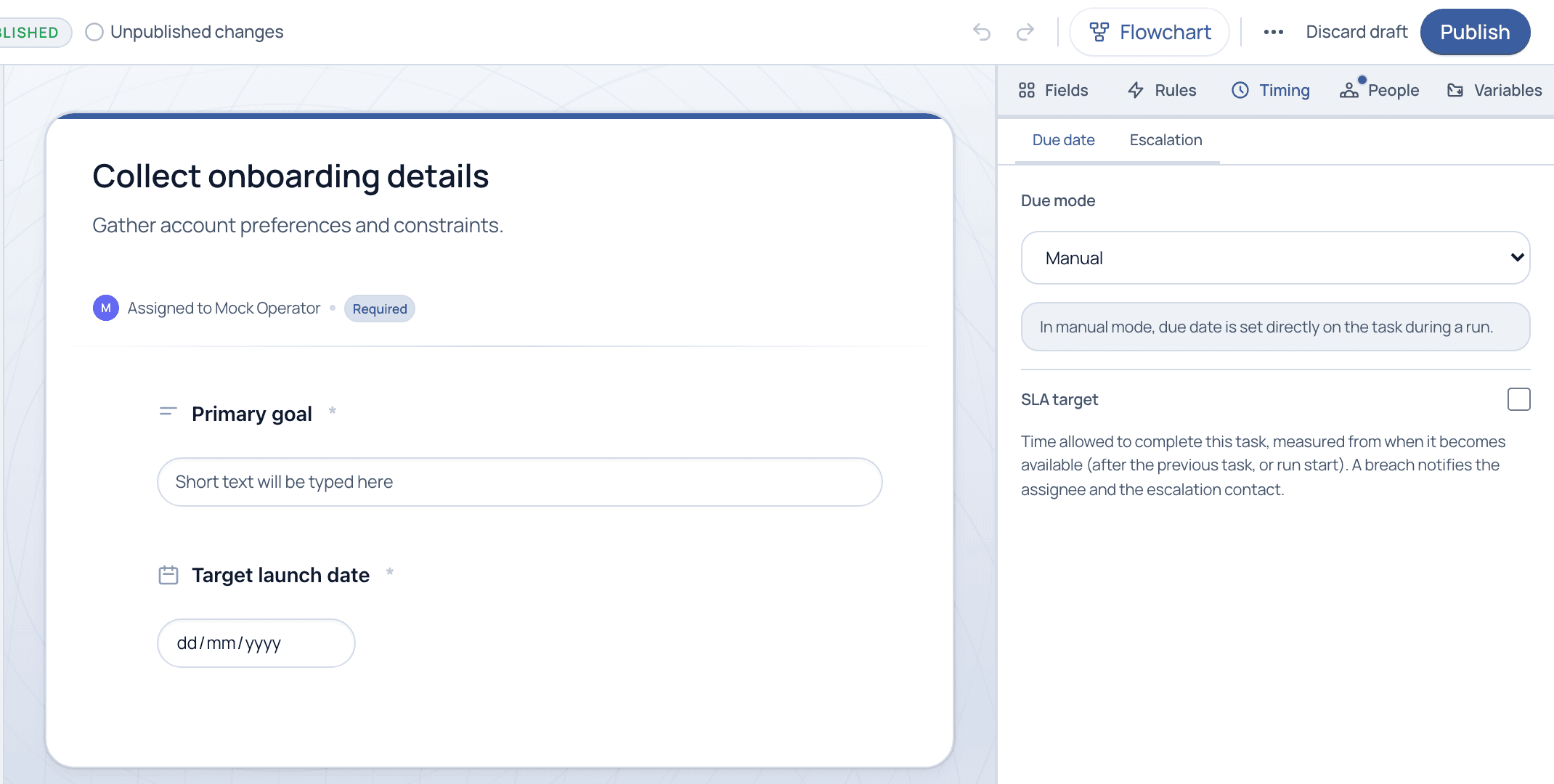
The Timing tab has two sections: Due date and Escalation. Choose a Due mode, in Manual mode the date is set on the task during a run, then optionally set an SLA target: the time allowed to complete the task, measured from when it becomes available. A breach notifies the assignee and the escalation contact.
The Timing tab. Set the due mode, then an SLA target that notifies and escalates on breach.
Due date vs. SLA
Related but distinct. Deadlines answer when; SLAs answer how long.
Due date
The calendar moment a task should be done by. In Manual mode it is set on the task during the run.
SLA target
A duration budget: the time allowed to complete the task, counted from when it becomes available (after the previous task, or run start).
Breach
When the SLA elapses without completion. Cadenio notifies the assignee and the escalation contact so it never passes silently.
Escalation
The follow-up path when a task is late: notify a manager, reassign, or step up through levels.
SLAs are measured from when a task becomes available, not from run start, so a step deep in the Flow gets a fair clock that begins only once the work can actually start.
Common questions
What happens the moment an SLA is breached?
The assignee and the escalation contact are notified immediately, and the run surfaces as Overdue on the Runs screen. Escalation rules can then take further action automatically.
Can deadlines be relative instead of a fixed date?
Yes. Beyond Manual, due modes can compute a date relative to run start or a prior event, so the deadline adapts to when each run actually begins.
Make late work impossible to ignore
See SLA tracking and escalation working end to end on a guided demo.