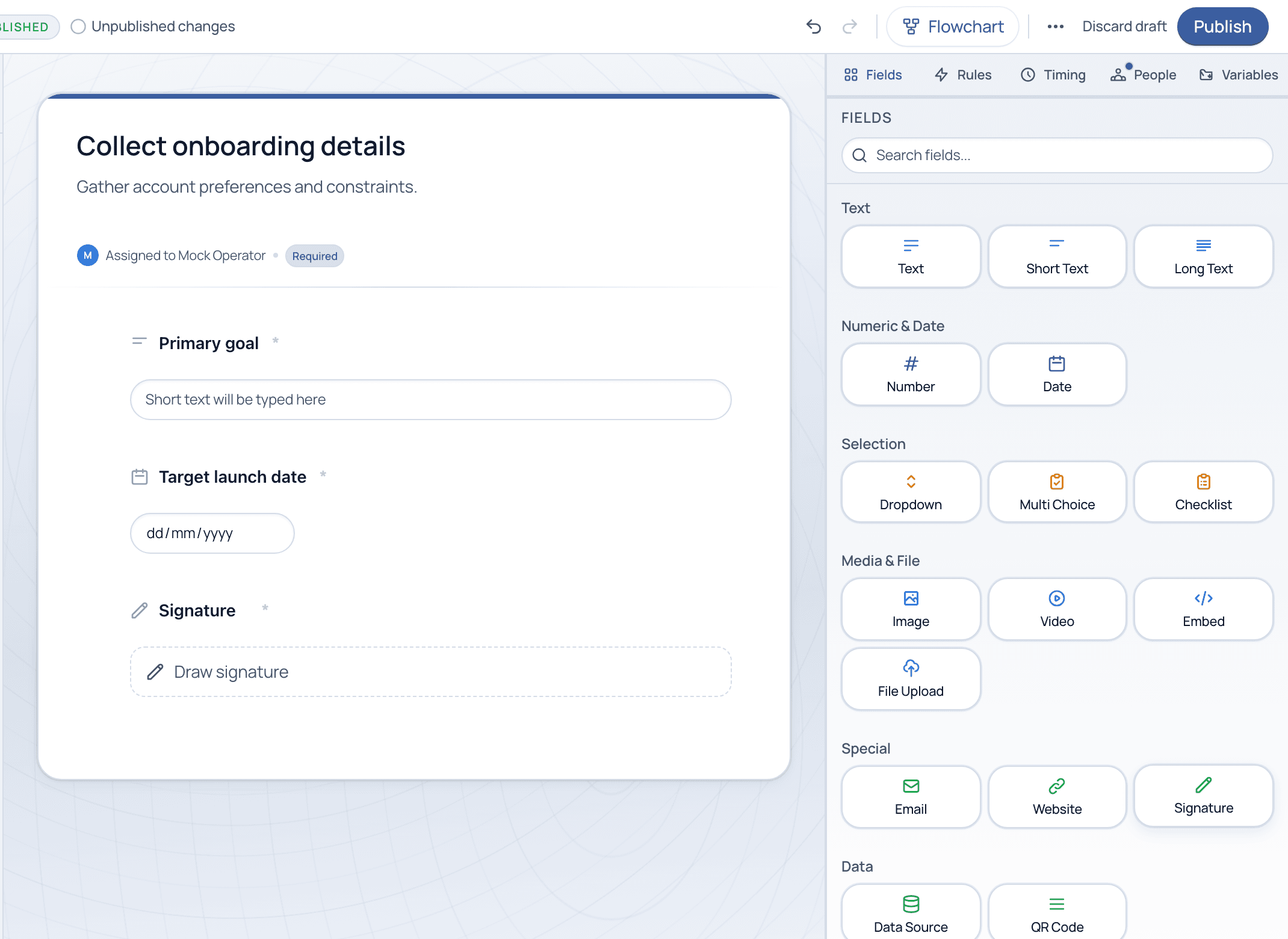
Fields turn a task into a form. Cadenio has 16 field types across text, numbers, dates, selection, media, and special inputs like signatures, so every task collects exactly the data you need.
6 min read · Builders
The field library
Drag a field type onto a task
With the Fields tab open, the design panel lists every field type, grouped by kind. Click one to add it to the selected task; it appears immediately on the canvas as respondents will see it. Search the library by name when you know what you want.
The field library. Field types are grouped by kind; here a task collects text, a date, and a signature.
Records from a Data Source, and scannable QR codes
Field behavior
Beyond the type
Required: Mark a field required and the task cannot be completed until it is filled, enforcing data quality at the source.
Signature: The Signature field captures a drawn signature on the task, the foundation for sign-off and legal-validity flows.
Feeds logic: A field's answer can trigger a Smart Logic rule to show, hide, or branch later tasks (see the Logic tutorial).
Feeds reports: Structured field data rolls up into reports and CSV exports, so you can measure the process, not just run it.
Prefer Dropdown or Multi Choice over free text whenever the answer is a known set. Controlled values keep your reports clean and make logic rules reliable.
Common questions
What is the Data Source field?
It links the task to a record in a Data Source (a reusable table like vendors or clients), so respondents pick from live data instead of retyping it. See the Data Sources tutorial.
Can a field be pre-filled or reused across tasks?
Yes, via Variables. Store a value once and reference it later so the same data does not have to be entered twice. See the Variables tutorial.
Design the perfect form for your process
Show us the data you need to capture and we will model the fields with you on a guided demo.