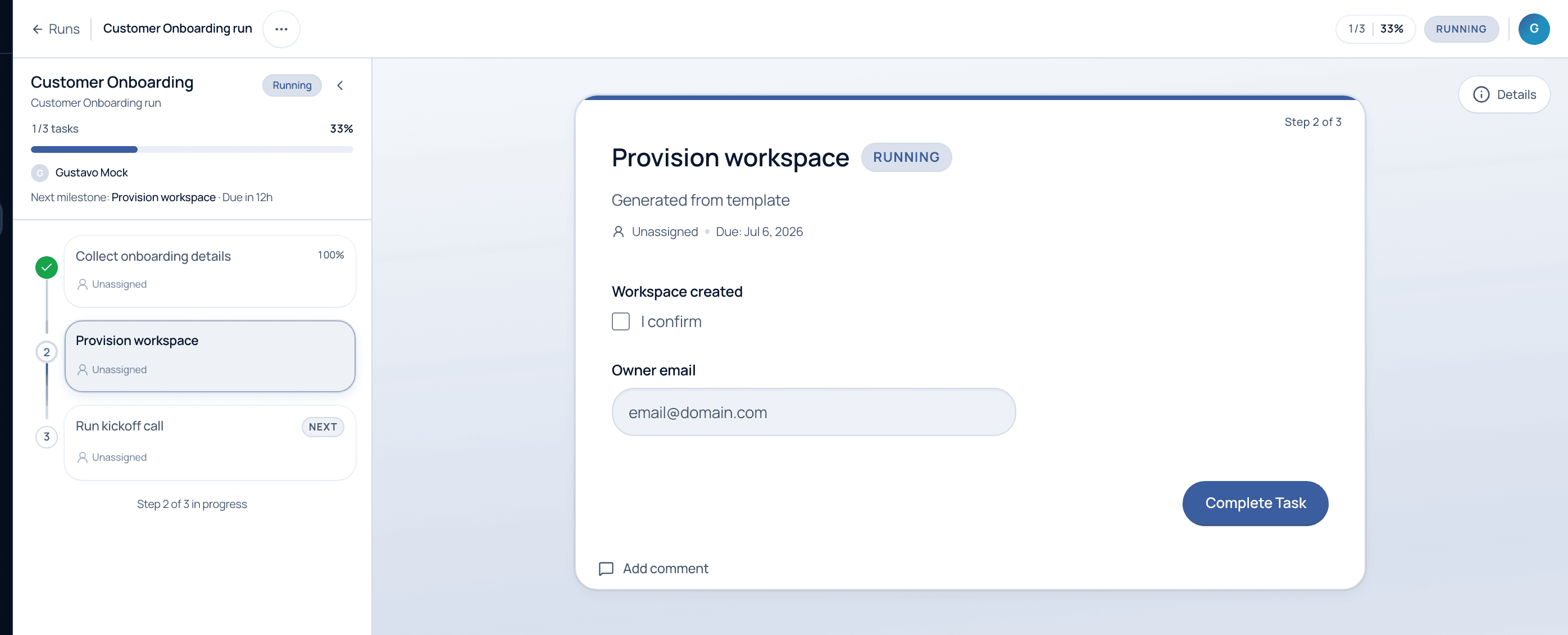
Opening a run shows the step list on the left and the current task on the right. Fill the fields, complete the task, and the run advances, with progress and next milestone always in view.
5 min read · Everyone
The run screen
Steps on the left, work on the right
Click any run to open it. The left rail lists every step with its status, a green check for done, a highlight for the current one, and a NEXT badge for what follows. The panel on the right is the current task: its fields, due date, assignee, and a Complete Task button. The header tracks overall progress and the next milestone.
A live run. The step list tracks progress; the current task shows its fields and a Complete Task button.
Walkthrough
Complete a task
1
Open the current step
The run opens on the task that needs attention. The step list shows what is done, what is in progress, and what is next.
2
Fill in the fields
Enter the data the task asks for. Required fields must be completed before the task can be finished, so data quality is enforced as you go.
3
Add a comment if needed
Use Add comment to leave context, ask a question, or @-mention a teammate. Mentions land in that person's Inbox.
4
Complete the task
Press Complete Task. If the task has an approval gate, it moves to the approver; otherwise the run advances to the next step automatically.
You rarely need to open a run from scratch. Most work reaches you through the Inbox; clicking a task there drops you straight onto the right step of the right run.
Common questions
Why can't I complete a task yet?
Usually because a required field is empty, or the task is waiting on a dependency or an approval. The task will tell you what is blocking it.
What happens after the last step?
The run is marked complete and drops off the active Runs list. Its full history stays in Governance as an immutable audit record.
See execution flow end to end
Watch a run move from start to sign-off on a guided demo.