A webhook sends a real-time HTTP callback whenever something happens in your flows, a run starts, a task completes, so your other systems react instantly instead of polling.
4 min read · Admins & developers
Webhooks
Register an endpoint, receive events
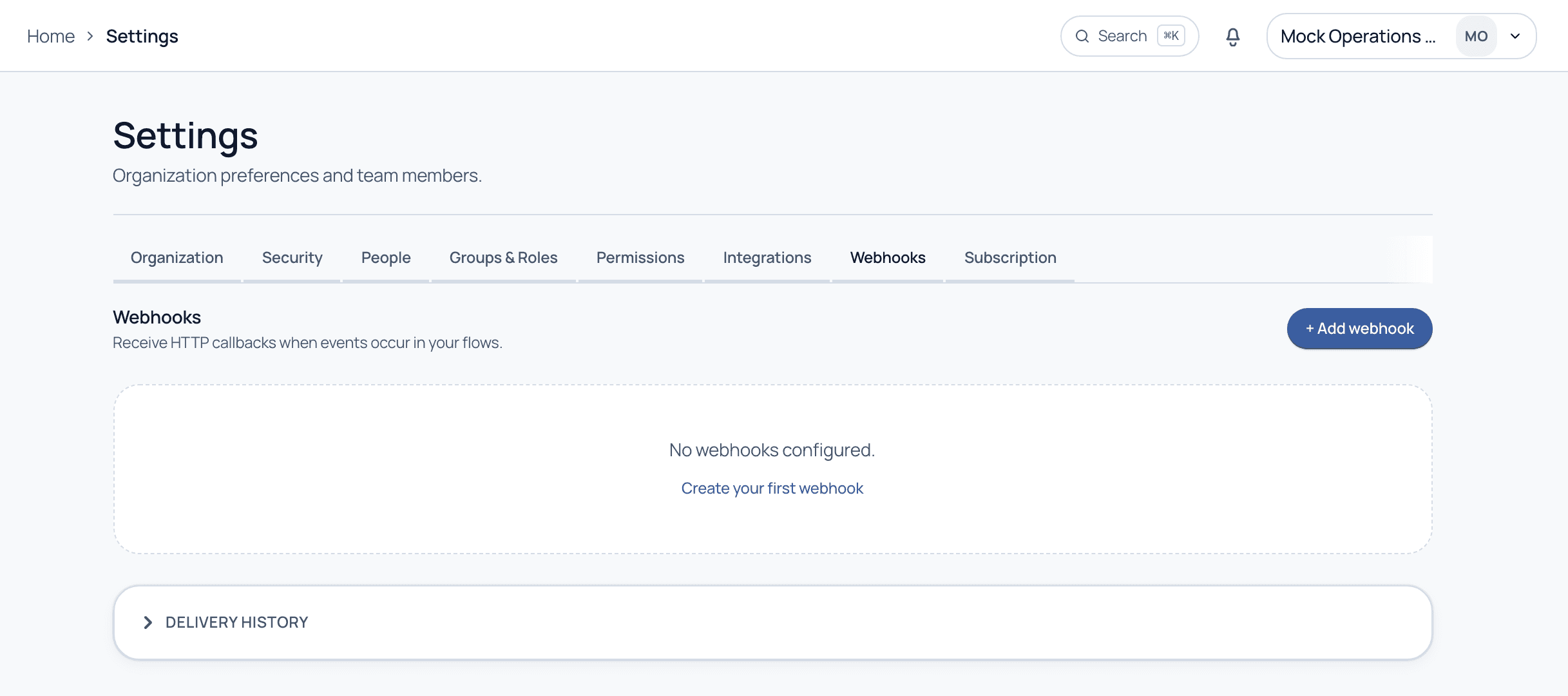
Under Settings, the Webhooks tab lets you add an endpoint that receives HTTP callbacks when events occur in your flows. Cadenio POSTs a payload to your URL as things happen, and the Delivery history shows every attempt so you can debug failures.
The Webhooks tab. Add an endpoint, then watch every callback in the delivery history.
Walkthrough
Set up a webhook
1
Add a webhook
Click Add webhook and paste the URL of the endpoint that should receive events, typically a route in your own service.
2
Choose the events
Pick which events fire a callback, for example run started or task completed, so you only receive what you care about.
3
Verify delivery
Cadenio POSTs a signed payload to your URL as events happen. The Delivery history logs each attempt, its status, and lets you retry.
Outbound vs. inbound
Outbound webhook
Cadenio calls you: it POSTs to your endpoint when an event happens, so your systems react in real time.
Inbound webhook
You call Cadenio: an external system hits a Cadenio URL to start a run or update data, useful for triggering flows from elsewhere.
Delivery history
A log of every callback attempt with status and payload, so failed deliveries are easy to spot and retry.
Common questions
How do I know a webhook came from Cadenio?
Payloads are signed. Verify the signature on your endpoint before trusting the request, so nobody can spoof events.
What if my endpoint is down?
The delivery history records the failure. You can inspect the attempt and retry once your endpoint is back, so events are not silently lost.
Connect Cadenio to everything
See webhooks firing into a live endpoint on a guided demo.