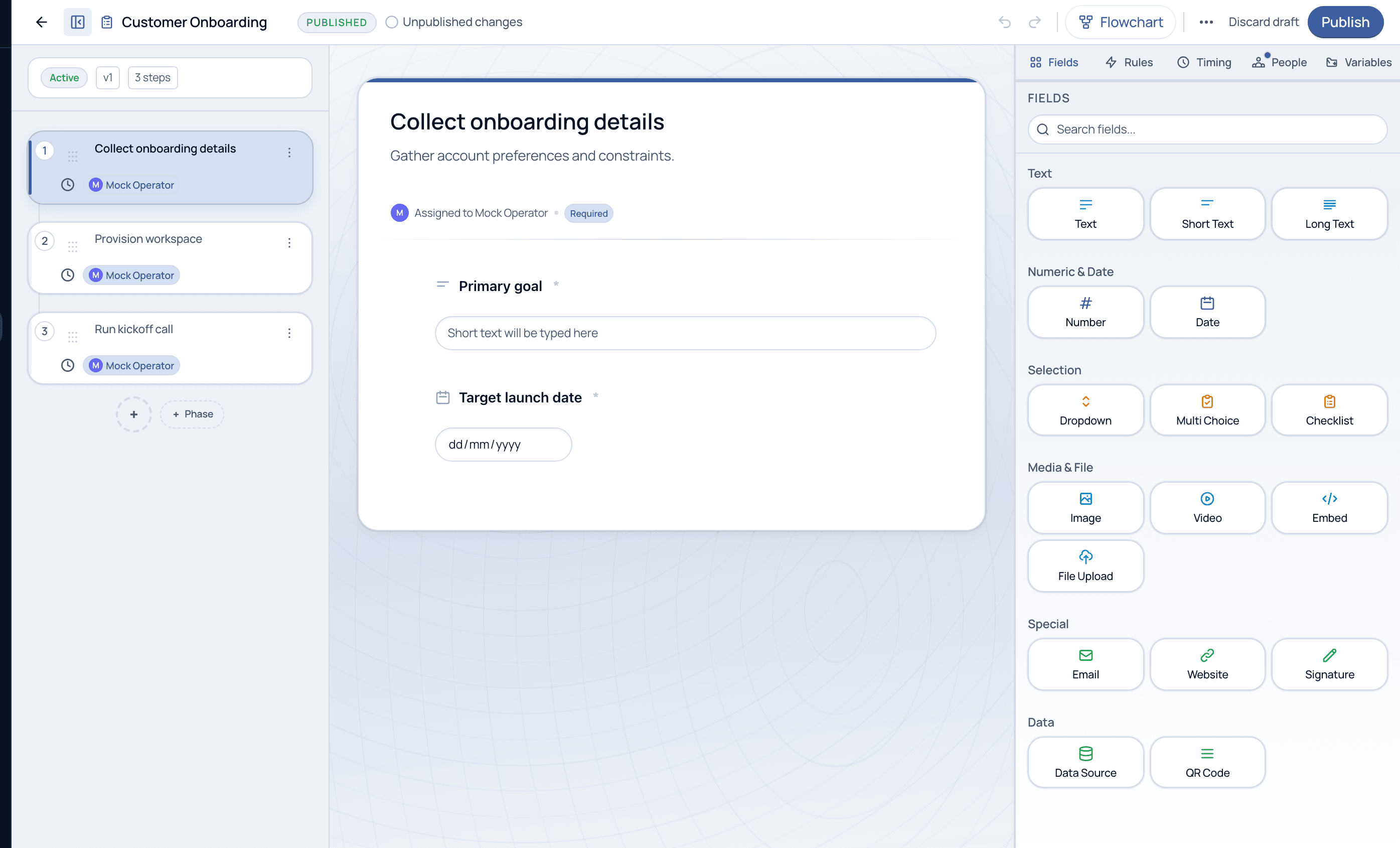
The editor has three zones: the steps list on the left, the task canvas in the middle, and the design panel on the right. Learn the layout once and everything else falls into place.
6 min read · Builders
The editor
Three zones, one screen
Open any Flow and click Edit flow. On the left is the ordered list of steps (tasks and phases). In the middle is the canvas for the selected task: its title, description, assignee, and the fields respondents fill in. On the right is the design panel, with tabs for Fields, Rules, Timing, People, and Variables that configure whatever you have selected.
The Flow editor. Steps on the left, task canvas in the middle, and the design panel with its five tabs on the right.
What each zone is for
Left
Steps & phases
•Add, reorder, and group tasks
•Drag to reorder; + adds a task
•+ Phase groups tasks into stages
Middle
Task canvas
•Edit the selected task's title & description
•See its fields as respondents will
•Shows assignee and required state
Right
Design panel
•Fields, Rules, Timing, People, Variables
•Configures the selected task
•Where the real power lives
The design panel tabs
Five tabs, five capabilities
Each tab is covered in depth by its own tutorial in this block.
Fields
The 16 field types you drag onto a task to capture structured data.
Rules
Conditional logic, dependencies, checkpoints, and automations that make the Flow adapt.
Timing
Due dates, SLA targets, and escalation for the selected task.
People
Assignment, approval, permissions, and external participation.
Variables
Values stored in the Flow and reused across tasks without a form field.
Flowchart view
See the whole Flow at a glance
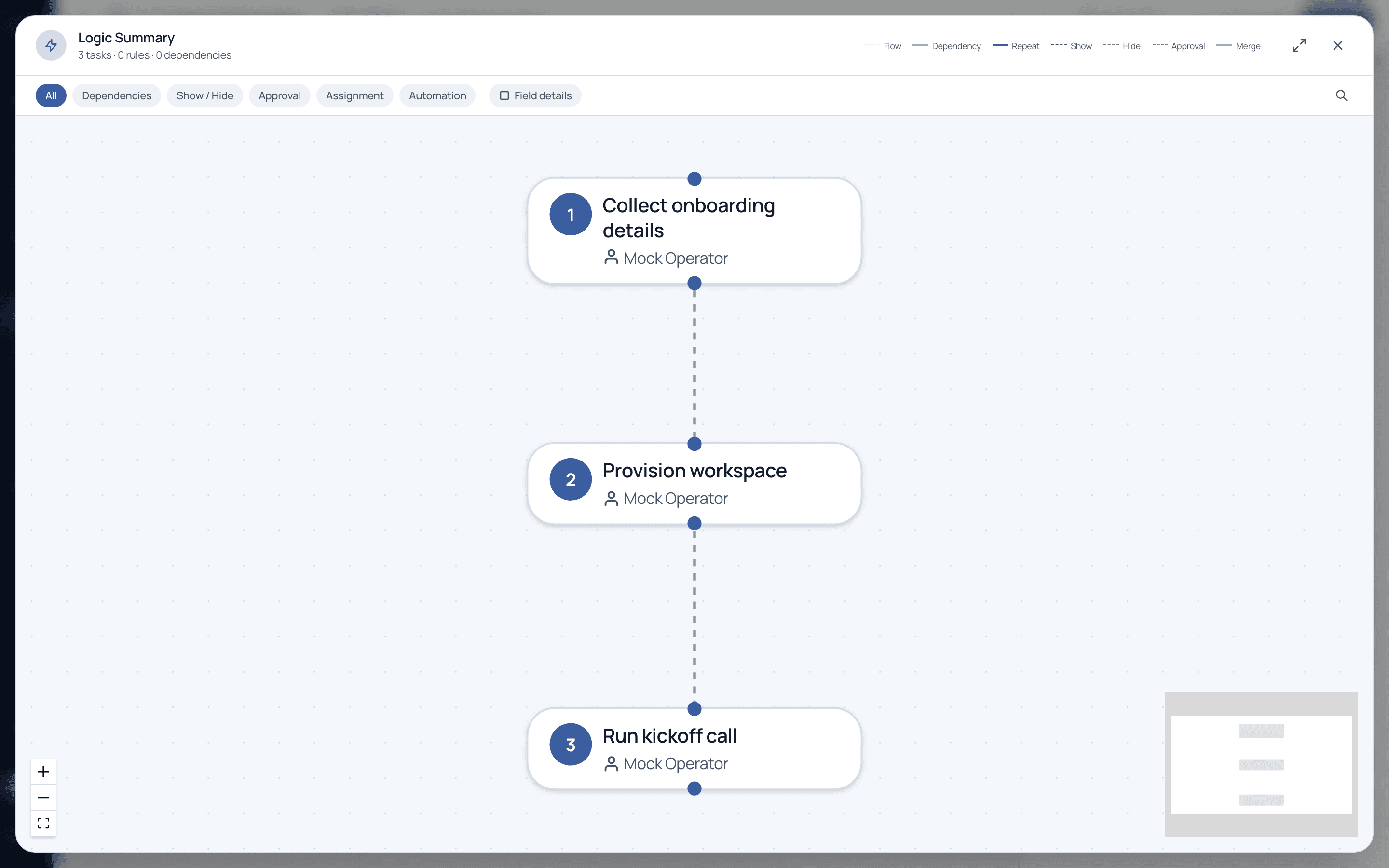
The Flowchart button opens the Logic Summary: a visual map of every task, dependency, show/hide rule, approval, and merge. Filter by rule type to audit exactly how the Flow behaves before you publish.
The Logic Summary (Flowchart). A visual audit of tasks, dependencies, and rules, with a filterable legend.
Editing always happens in a draft. The top bar shows Unpublished changes until you press Publish, and Discard draft throws the draft away. Nothing you do in the editor affects live runs until you publish.
Common questions
Do my edits affect runs that are already live?
Not until you publish, and even then existing runs keep their started-from version unless you explicitly propagate the change. The editor is a safe drafting space.
What is a phase?
A phase groups related tasks into a labelled stage (for example Intake, Review, Sign-off). It is purely organizational and helps large Flows stay readable.
Build your first Flow with us
We will screen-share the editor and turn one of your processes into a Flow on a guided demo.