Tutorial · Runs
Runs: track every execution in flight
The Runs screen is your operations control tower. See every live execution, what is overdue, who owns it, and when it is due, then drill in to act.
6 min read · Managers & operators
Tutorial · Runs
The Runs screen is your operations control tower. See every live execution, what is overdue, who owns it, and when it is due, then drill in to act.
6 min read · Managers & operators
The Runs screen
Open Runs from the sidebar. The status row across the top counts what is In progress, Overdue, and Completed, plus a Stalled filter for runs with no recent activity. Below, every run is a row: priority, name, its Flow, live status, due date, owner, and start date. Sort any column, or switch to the Calendar view to see runs by date.
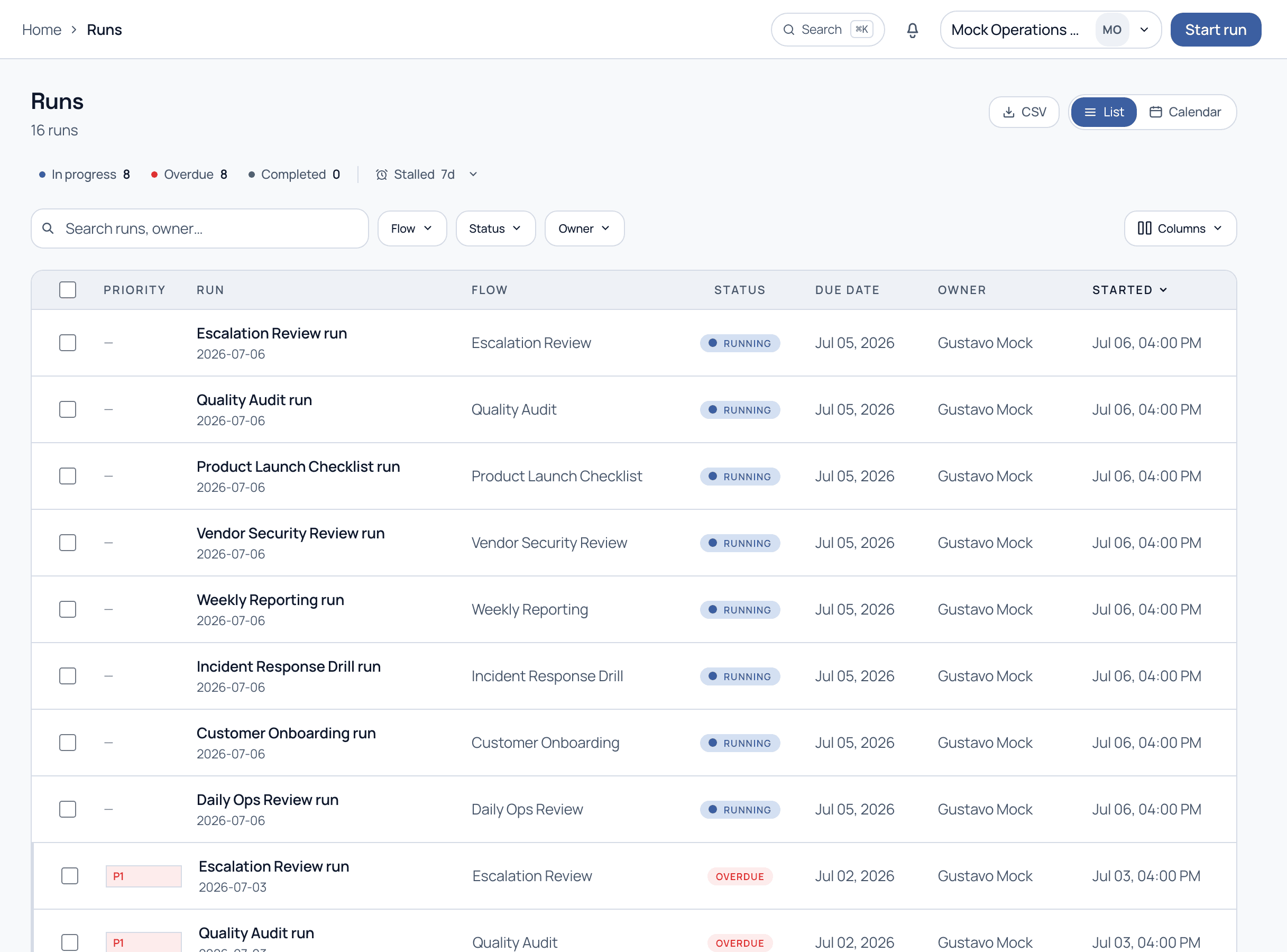
The counts at the top are also filters. Click one to narrow the table to just those runs.
In progress
Actively running
Overdue
Past due date
Stalled
No recent activity
Walkthrough
Use the Flow, Status, and Owner dropdowns, or the search box, to cut a long list down to what you care about, for example every Overdue run owned by one person.
Click a column header (Due date, Started, Priority) to sort. Combine with the Overdue filter to put the most urgent work on top.
The Columns button lets you show or hide fields so the table matches how your team triages. Priority badges (P1, P2) surface the most important runs at a glance.
Click any row to open the run detail, where you complete tasks, view the audit trail, and see progress. That screen is covered in the Block C tutorials.
Export the current view to CSV for reporting, or use Start run to launch a new execution without leaving the screen.
Make Overdue plus sort-by-due-date your morning triage view. It answers what is on fire in one glance, and pairs perfectly with the Daily Ops Review flow.
A run is overdue when it passes the deadline set by the Flow's SLA or due-date rules, or when a task inside it is past its own deadline. Overdue runs are where escalation notifications trigger.
Overdue is about the clock: a deadline passed. Stalled is about activity: nobody has touched the run in a set window (7 days by default), even if it is not technically late yet. A run can be one, both, or neither.
Yes. Toggle List / Calendar at the top right to place runs on their due dates, which is useful for spotting clustering and planning capacity.
See how teams triage hundreds of live runs without a spreadsheet, on a guided demo.